Policies
Overview
Policies are sets of rules or guidelines that define how certificates can be used. In Redtrust, policies define rules and restrictions on how individual certificates or groups of certificates are used. Generally, if a certificate has no assigned policies, no user will be able to use it. Only owners of a certificate have complete access to their certificate superseding any configured policies. For more information, see Certificates.
You can configure policies from the Policies navigation tab of the web admin console. To do that, you need to choose a certificate group and define who can use them and where they can use them (that is, in which applications and sites) and when (that is, at what times). From the sidebar, you can also define the applications and sites that can use certificates.
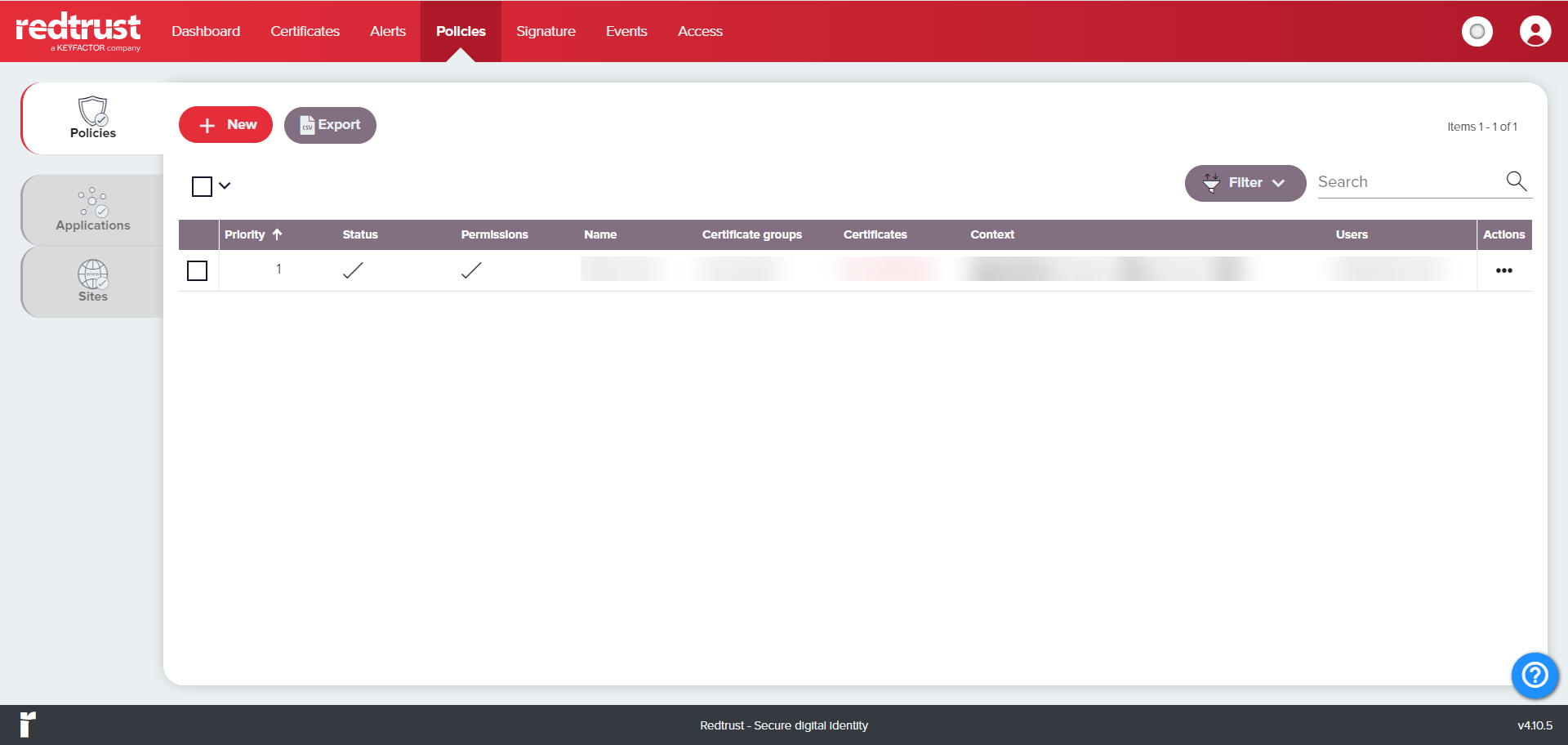
Click here to see the list of policy settings.
Policy settings
General
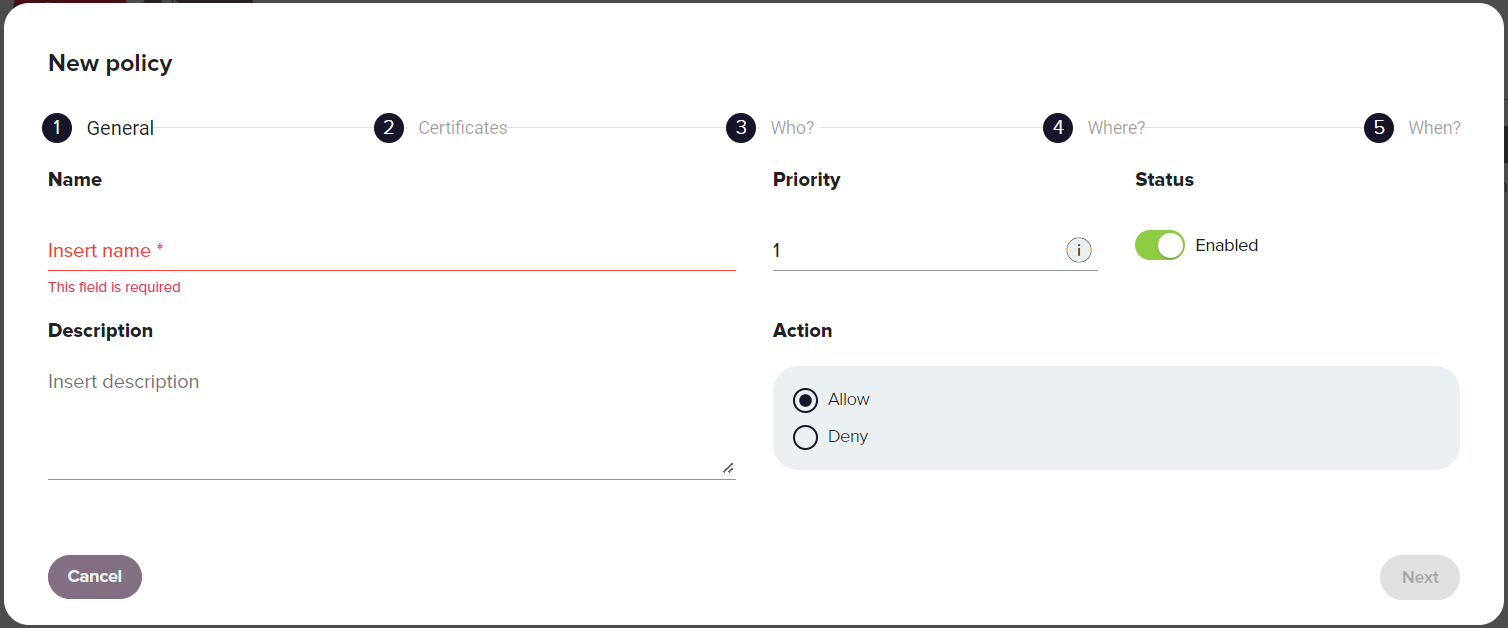
| Setting | Description |
|---|---|
| Name | Descriptive name for the policy. |
| Priority | Determines the order in which policies are applied when users want to make use of a certificate assigned to multiple policies, where 0 is the highest priority. Avoid assigning policies with the same level of priority to the same user or group, as this can lead policies being applied inconsistently. |
| Status | Determines whether the policy is enabled or not. An enabled policy is active and enforced while a disabled policy is inactive or not enforced. |
| Action | Defines whether the policy allows or denies the use of the certificate based on the defined parameters of the policy. |
| User PIN policy | Do nothing: When this option is selected, the system requires a user PIN only if the certificate is configured to enforce it. Ask for user PIN: This option requires the PIN when a certificate is used. Don't ask for user PIN: This option doesn't require the PIN unless the certificate configuration is set to Force asking for user PIN. |
| Description | Optional information about the policy. |
Certificates
The Certificates section of the policy creation wizard defines which certificates or groups of certificates a policy applies to.
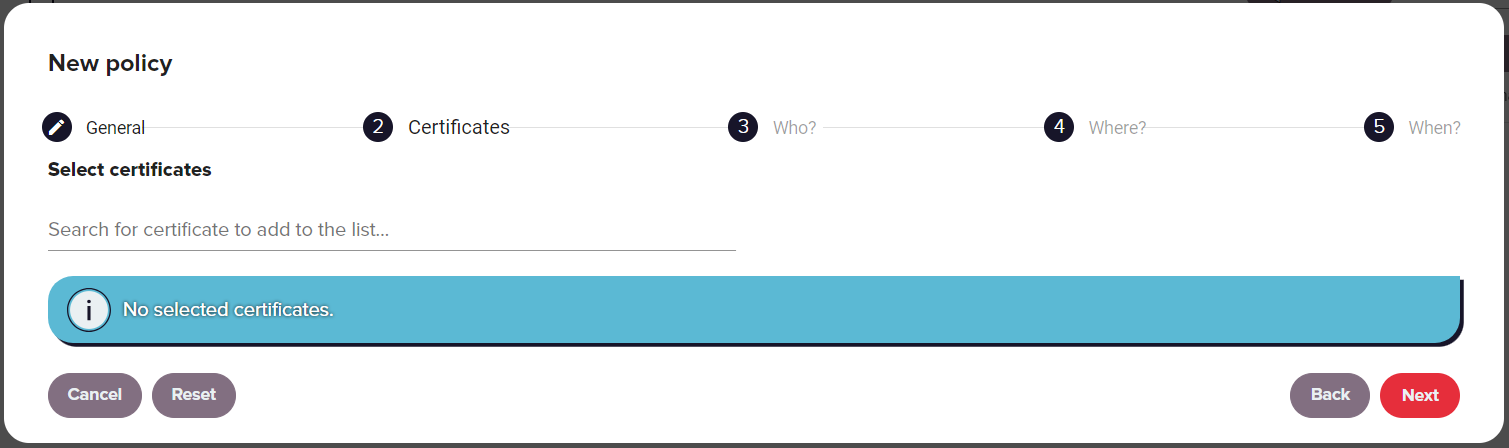
| Setting | Description |
|---|---|
| Select Certificate(s) | Start typing to populate a list of certificates and certificate groups to choose from for the policy. The certificates available in this list will depend on which certificate groups the currently authenticated user has access to based on their defined role. For more information see the roles section |
Who
The Who section of the wizard defines the users or groups of users that the policy will apply to. You can search for a user by typing the first two letters of his name in the User field.
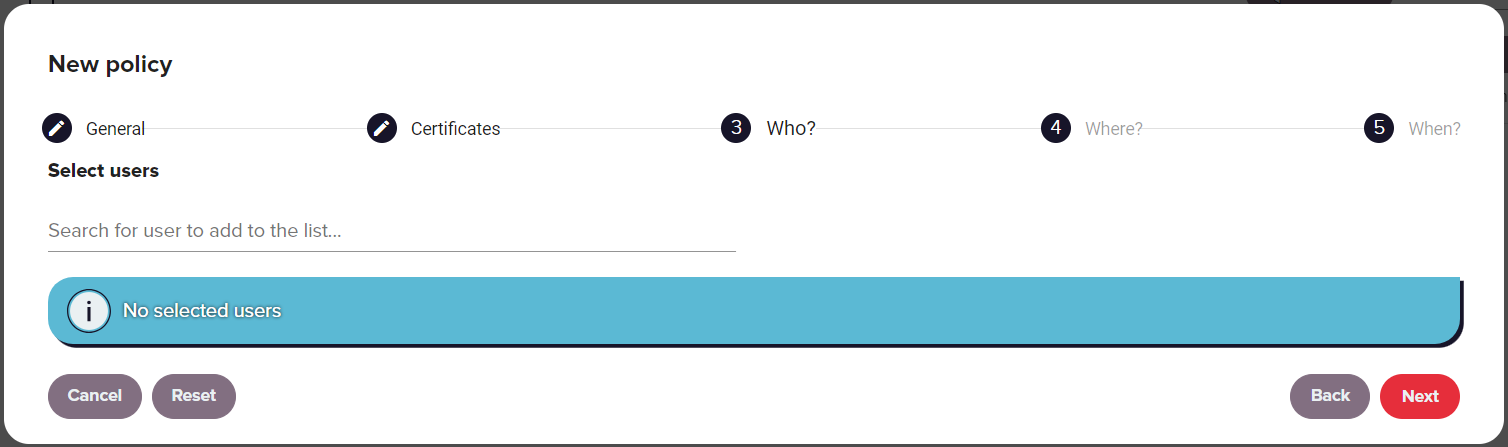
| Setting | Description |
|---|---|
| Select User(s) | Start typing to populate a list of users and user groups to select from. Multiple users and groups of users can be selected. |
Where
The Where section of the wizard defines the applications or regular expressions that apply to the policy. Select Add Applications to bring up a list of created applications.
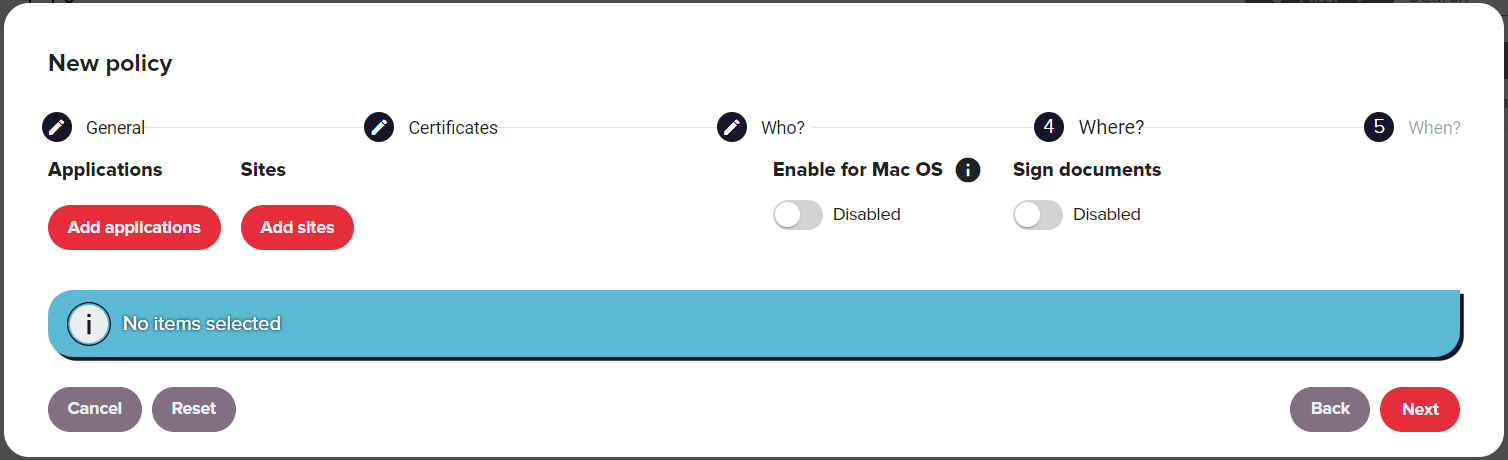
If no relevant applications have been defined, the user can define a new ones using the Add application group button. For more information see the Applications section.
When
The When section of the wizard defines the option to schedule when the policy will be applied.
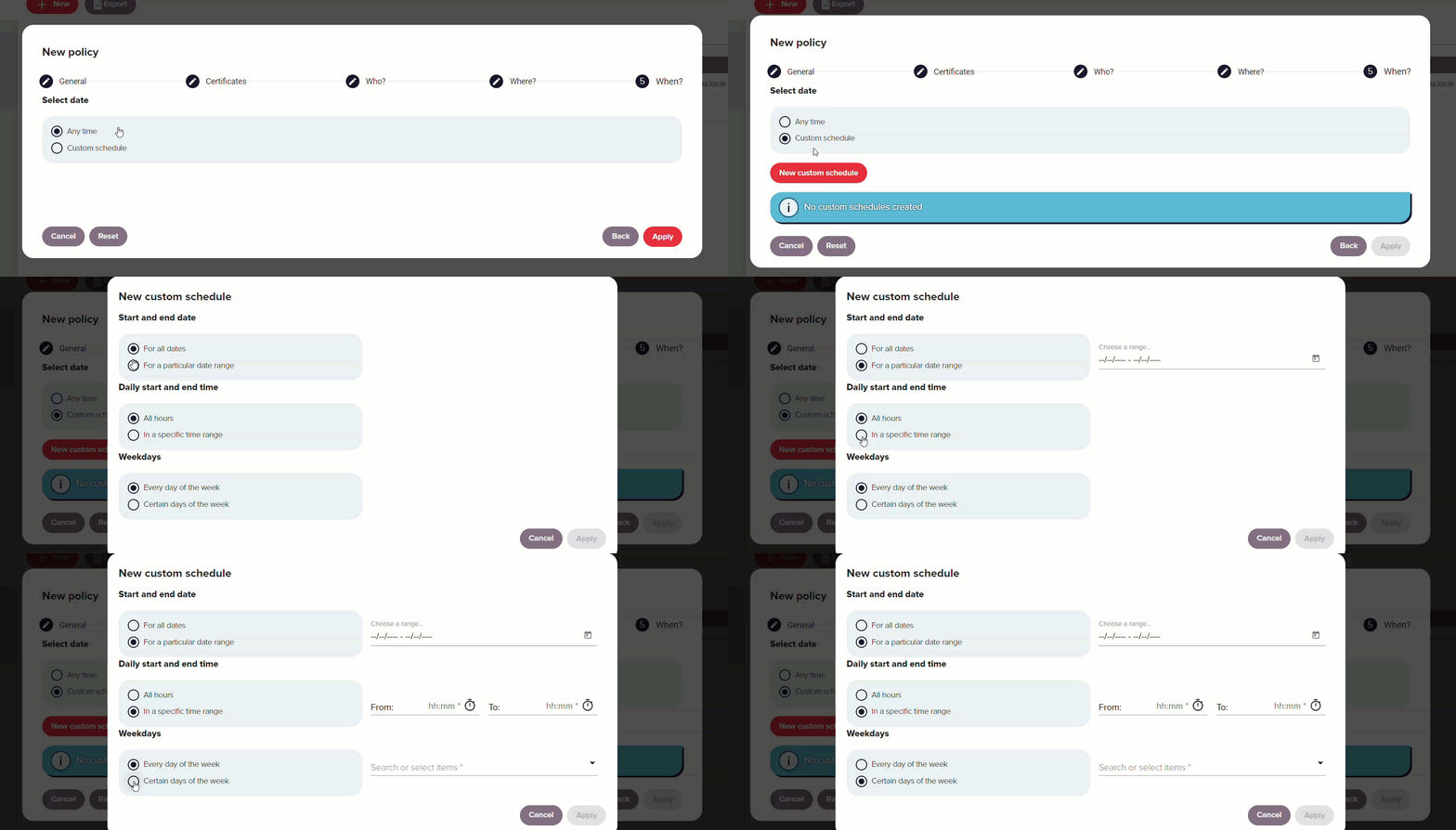
It can be configured to always apply or follow a custom schedule based on specific dates, times of day or days of the week. When selecting a date range, a calendar appears for you to choose start and end dates. For a specific time range, you can specify the hours during which the policy is active. Additionally, you can define the days of the week its use is allowed.
Redtrust uses Universal Coordinated Time (UTC) for measuring the time and dates for policies.
Click here to see the list of policy operations.
Policy operations
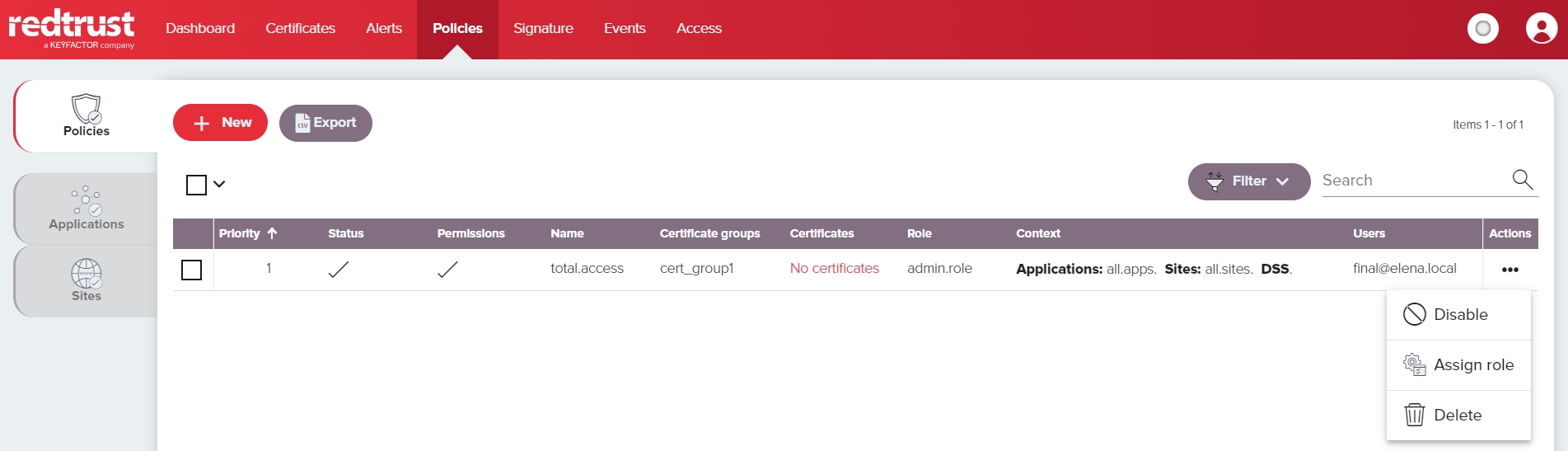
To see the policy operations, click the ⋯ in the certificate's row.
| Setting | Description |
|---|---|
| Assign a policy to a role | By default, a policy is assigned to the role that created it. This ensures that only users within that role, who have the necessary permissions, can view and modify the policy. However, the policy can still be applied to users outside the assigned role. The Redtrust administrator account has the ability to reassign the policy to a different role if needed. |
| Enable and Disable | Enables or disables the policy. |
| Delete | Permanently deletes the policy. |
Applications
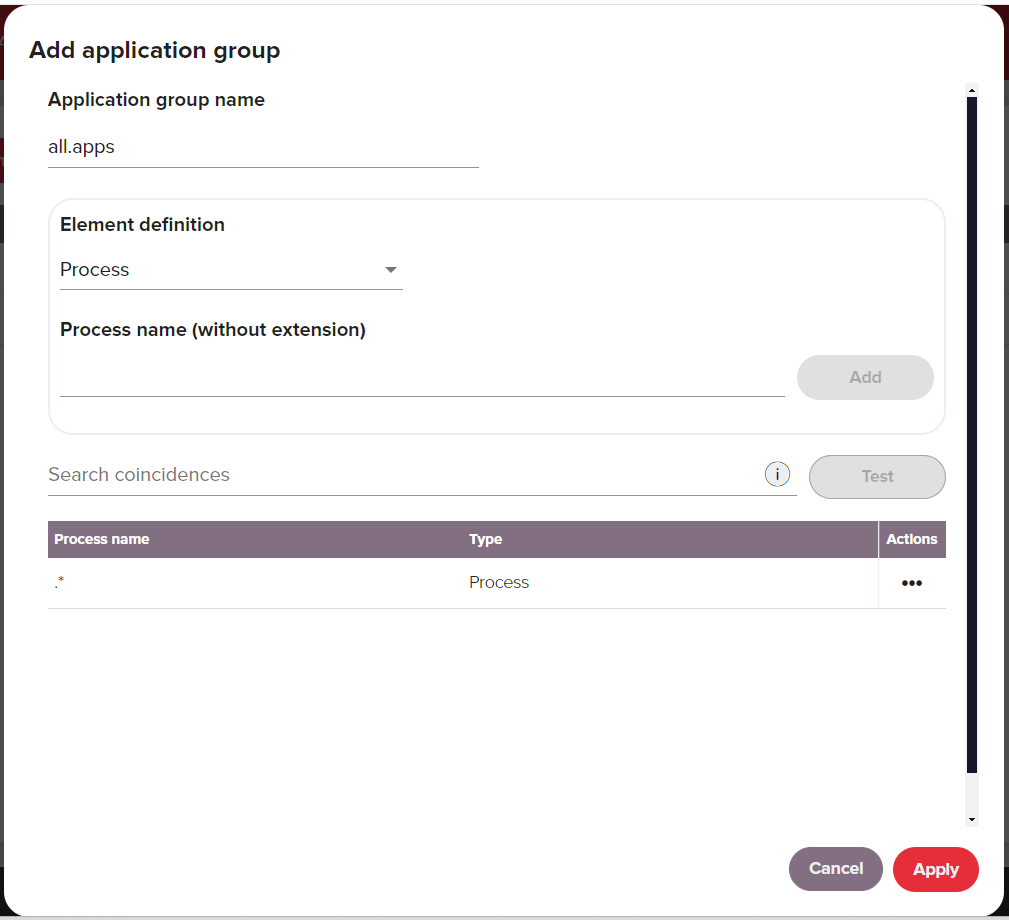
In the applications tab of the Policies section of the administration console you can define applications by creating processes or regular expressions (RegEx) that are applied on the command line. These application groups can be applied to policies allowing granular control over what applications on the client machine are allowed or prohibited from using the certificate associated with the policy.
When adding the process or command line expression to an application group (see image below), you can use the Search Coincidences field to test the process or command line expression. This way you can check if the text matches any properties that have been added to this application group. To test, simply enter the text and click Test. If nothing is found, Redtrust will display a warning. If successful, it will show the number of elements that match the field.
Click here to see a list of the applications settings.
| Setting | Description |
|---|---|
| Application Group Name | The name for the application group. |
| Process | Name of the application you want to define (without the extension). It's used to identify specific applications, such as “mmc” for Microsoft Management Center or “signtool” for Microsoft SignTool. To indicate any application you can use the * as a wildcard operator by entering a period followed by an asterisk [ .* ] If desired, multiple processes can be added. |
| Command line | This option lets you define a RegEx to analyze the command being run and check if it matches the specific pattern. This is useful when you want to enforce specific properties, such as a specifying PDFs from a specific path or other settings, when you are using the certificate in Acrobat Reader. The following example uses a RegEx to define the preceding scenario. .*Acrobat.exe D:Document D:*.pdf.*. |
Sites
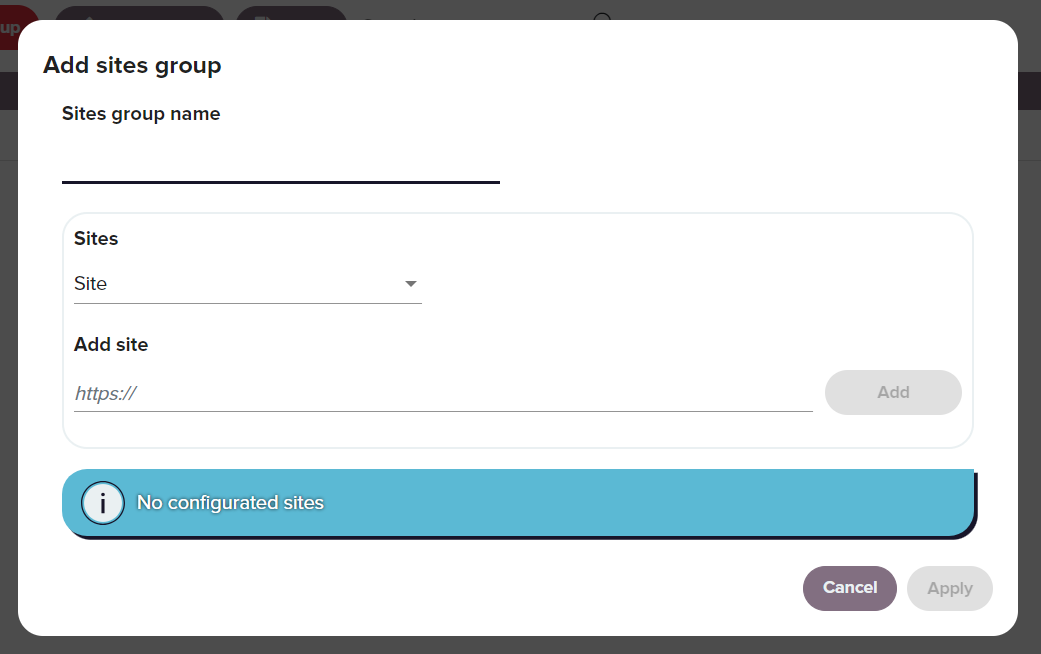
Use the Sites tab in Policies to define site groups. You can then apply these sites to policies to allow or block where the certificate associated with the policy can be used. After a user authenticates to a site, you can also control which sections of that site are accessible.
You can combine site rules across policies. For example, create a policy that allows an entire domain, then add a higher-priority policy that denies a specific path within that domain.
Wildcards
The Site field supports the following wildcards:
*: any number of characters (including none)?: zero or one character+: one or more characters
Examples
www*.example.commatcheswww.example.com,www1.example.com,www-api.example.com.api?.example.commatchesapi.example.comandapi1.example.com, but notapi12.example.com.files+.example.commatchesfiles1.example.com,files-prod.example.com, etc.
Host rules vs URL rules
-
Host rule (no path): applies to the entire host.
Example:reports.example.commatches any URL underhttps://reports.example.com. -
URL rule (includes a
/path): applies only to the specified path.
Example:*.example.com/reportsmatcheshttps://app.example.com/reportsbut nothttps://app.example.com/finance.
You can also combine wildcards in paths. For example, *.example.com/*/invoices matches https://portal.example.com/2024/invoices and https://a.example.com/es/invoices
Escaping special characters
If you need to use ?, *, or + literally (for example, because they appear in a URL), escape them with a backslash \?, \*, or \+. For example: https://portal.example.com:\?9443/app/view.
Click here to see the list of site settings.
| Setting | Description |
|---|---|
| Sites group name | Name of the sites group. |
| Site | Defines the site. It supports the use of the character * and ? as wildcards when defining them. * is resolved to any alphanumeric string but not including ., that is, it allows you to define a wildcard string within a subdomain. |
| Regular expression | The regular expression option. For more information on the use of regular expressions, check this article on the topic. |
Was this page helpful?